
Office ergonomics means arranging workstations, equipment and working routines around the people using them. It considers how employees interact with their surroundings, with the aim of supporting wellbeing and making work easier to carry out.
For an office manager, that starts with everyday details: where the mouse sits, whether the chair fits and how much room there is beneath the desk. This guide covers those adjustments, alongside the decisions that matter when furnishing a new office or improving an existing one.
Key Takeaways
- Assess the chair, desk, screen and accessories together rather than choosing each in isolation.
- Make adjustments around the employee and their actual tasks.
- Include lighting, storage and movement space in the plan.
- Allow changes of position and breaks from continuous screen work.
- Use workstation assessments to identify priorities, then check that improvements work in practice.

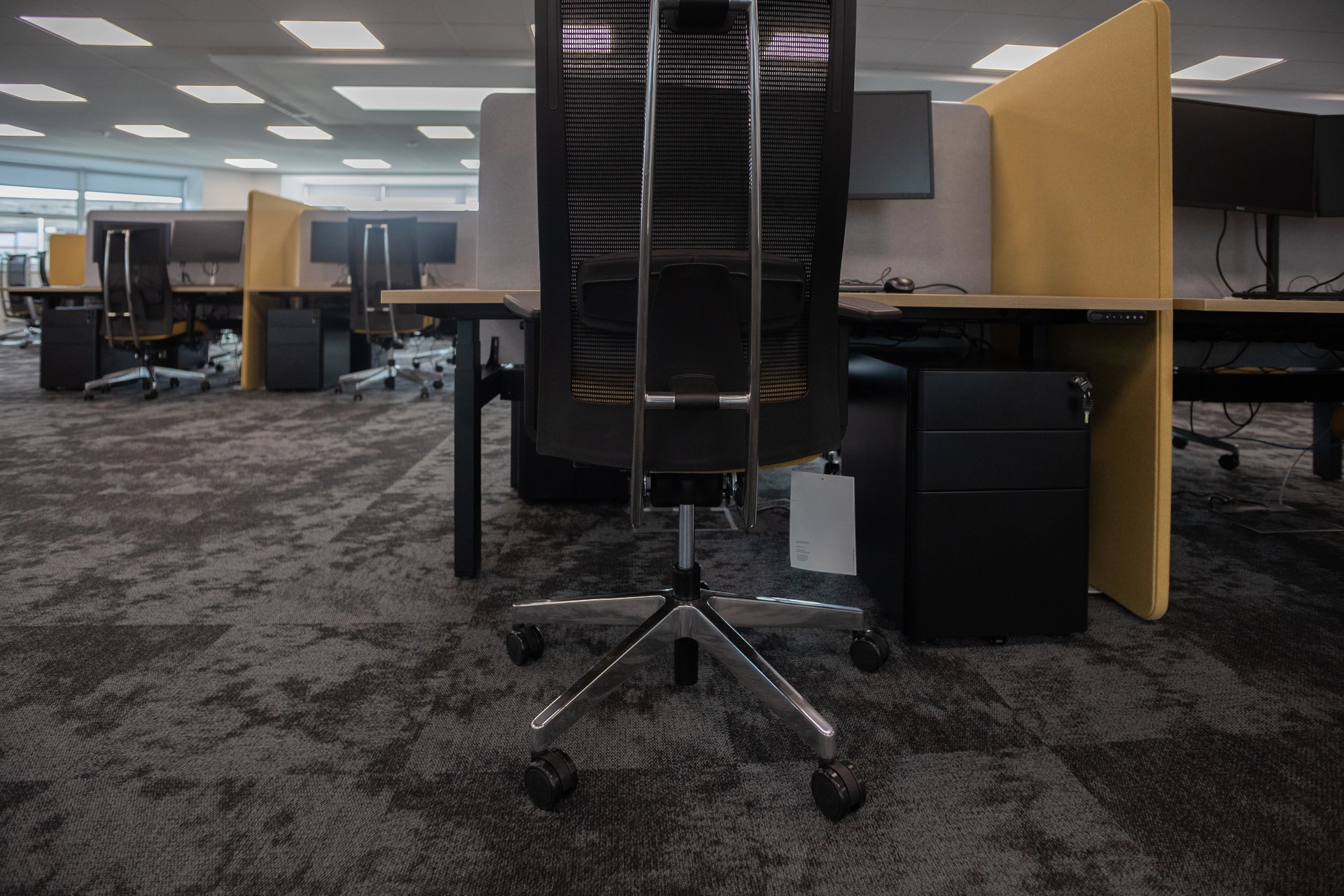
For this project, iGate Interiors undertook the full modernisation of a training room, a 32 seat space canteen, call centre, and executive offices with special focus on office ergonomics, acoustics and the overall wellbeing of staff. To provide a bright, welcoming and spatial work environment.
What Is Office Ergonomics?
Office ergonomics looks at the relationship between a person, their tasks and their working environment. The furniture is part of that relationship, but so are equipment placement, working methods and the opportunity to vary activities.
For example, imagine someone repeatedly moving paperwork aside to reach a mouse. Buying a different mouse would not necessarily address the problem. The arrangement of the work surface needs attention too.
Likewise, an “ergonomic” chair is only suitable if it fits the employee, the workstation and the work being done. The label alone is not a guarantee.
Treat ergonomics as part of designing an office space, rather than an accessories order placed after the furniture arrives. Start by asking what employees need to do and where their current setup gets in the way.

We provided a full suite of office furniture tailored to FBD’s operational needs and design standards, ensuring comfort, ergonomics, durability, and a modern aesthetic.
How to Set Up an Ergonomic Office Workstation
Start with a chair that fits the user
Adjust the ergonomic office chair so the backrest supports the lower back and the seat supports the thighs without pressing behind the knees. Feet should rest comfortably on the floor or a suitable footrest.
Check seat depth as well as height. Someone should be able to use the backrest without the seat edge pushing into their legs. Armrests should support relaxed shoulders without preventing the chair from approaching the desk.
During a furniture trial, ask employees to operate the controls themselves. A useful adjustment should be straightforward to find and use. Check that the adjustment range reaches the positions they need, rather than choosing a model simply because it has more controls.
Check desk height and working space
The desk and chair need to work together. Aim to position the keyboard around or slightly below elbow height, with shoulders relaxed. Raising the chair to reach a high desk may mean the feet need additional support.
Leave room beneath the work surface for the legs to move. Check that drawers, stored boxes and equipment do not force the user to sit at an angle.
Evaluate the desktop with the usual equipment in place. A desk that looks generous when empty may need a different arrangement once screens, documents and accessories are added.
Position the screen for comfortable viewing
Place the main screen directly ahead. Around an arm’s length away, with the top at or slightly below eye level, is a useful starting point rather than a fixed rule.
Adjust for screen size, eyesight and the glasses worn. People using varifocals may find a lower position more comfortable. Increase text size when necessary instead of leaning towards small characters.
Check the view while working in the usual application, not just while looking at a blank desktop.
Keep the keyboard, mouse and documents within reach
Position the keyboard ahead of the user and keep the mouse close beside it. Shoulders should remain relaxed, with elbows near the body and wrists broadly in line with the forearms.
Avoid pushing the keyboard to the back of the desk to make room for paperwork. Reorganise the surface so regular tasks do not require repeated reaching. Avoid pressing wrists against the desk edge, and check mouse placement for left-handed users as well as right-handed colleagues.
For document-heavy work, consider a holder near the screen. A headset may help people who regularly type while taking calls, rather than holding a phone between shoulder and ear.
Set up laptops for prolonged work
A laptop’s connected screen and keyboard limit how independently they can be positioned. For prolonged use, provide a separate keyboard and mouse with a laptop riser or external monitor. This allows the screen to be raised without raising the hands to an awkward working height.
In a hybrid working office, test the docking arrangement with employees’ actual devices. Check connections and available desk space before rolling the setup out across a department.
Look Beyond the Desk: Lighting, Layout and Noise
Reduce glare and improve visibility
Review office lighting from the employee’s position. Look for reflections on the screen, difficult contrasts and shadows over paperwork.
Desk orientation, adjustable blinds and suitable task lighting can help manage these issues. Additional light should improve visibility without creating glare for the person at the next workstation.
Check conditions at different times of day. Ask whether an apparently comfortable morning setup becomes difficult when sunlight reaches the window later on. Adjust display brightness and contrast alongside the room lighting, rather than asking staff to tolerate a screen that is difficult to read.
Provide space to move and an appropriate working environment
Include chair movement, access to storage and clear routes in office space planning. Consider how the workstation functions when someone is seated, a drawer is open or a colleague needs to pass. Position regularly used files where they can be reached easily, with less frequently needed materials stored away from the immediate working area.
Review distracting equipment and conversations alongside temperature and draughts. These form part of the wider working environment, even though changing a chair will not address them.
For example, investigate whether longer calls could move into suitable meeting booths, rather than expecting neighbouring employees to work around them. Keep the response proportionate to the problem identified.
Make Ergonomics Work Throughout the Day
Change position and vary tasks
A comfortable setup should allow movement, not encourage employees to hold one supposedly perfect posture for hours. Plan breaks or changes of activity that provide opportunities to leave the screen, stand or walk. Short, regular breaks are generally preferable to saving them for one long pause.
For teams with back-to-back video meetings, leave time between bookings to move away from the screen. Build that flexibility into schedules rather than relying entirely on employees to squeeze breaks into an already full diary.
Sit-stand desks offer another way to vary working position. They still need to fit the user at both heights, and prolonged standing can cause discomfort too. Keep breaks away from the computer in the routine.
Make shared workstations easy to adjust
Where hot desking is used, employees need to be able to reset the chair and screen for themselves. Clear instructions and accessible controls matter because the previous user’s settings may not suit the next person.
Test that process before introducing shared desks. Can someone move the monitor without struggling with cables? Can they adjust the chair without searching for instructions? Keep individually required equipment available rather than treating every workstation as interchangeable.
How to Improve Office Ergonomics Across Your Workplace
Begin with a workstation assessment
For employees covered by Ireland’s display screen equipment, or DSE, rules, employers must arrange workstation risk assessments. The Health and Safety Authority says these must be carried out by a competent person with appropriate training, experience and knowledge. An employee’s self-assessment alone is not sufficient.
The assessment should include discussion with the employee, observation of their work and an action plan for identified issues.
Encourage staff to report discomfort early. Persistent symptoms or individual health requirements may need advice from an occupational health or other appropriate healthcare professional, alongside changes to the workstation.
Match furniture and equipment to actual tasks
Use assessment findings when planning an office fit-out. Record what each role needs before selecting a standard furniture package.
Someone reviewing drawings and using several screens will need a different arrangement from a colleague working mainly with a single display. Include documents, phone use and other regular activities in the brief.
Trial proposed equipment with the people who will use it. Check its adjustment range and compatibility with the rest of the workstation before ordering in quantity.
Separate immediate adjustments from changes requiring new furniture or building work. Repositioning equipment may be possible straight away, while a cramped layout may need a more substantial office refurbishment.
Explain the adjustments and follow up
Show employees how to use new controls and readjust their workstation. Keep instructions available for new starters and people moving between desks.
Record outstanding actions, give each one an owner and agree a completion date. The HSA’s assessment process includes checking that identified issues have been addressed, rather than stopping once equipment has been delivered.
Designing a Workspace That Fits Your Team
Start with the users and their work, then coordinate furniture, equipment and layout around those requirements. Suitable seating and well-positioned screens deserve the same attention as finishes and meeting spaces.
iGate Interiors can help with office design, furniture selection and fit-out planning. Use the findings of workstation assessments to inform that design brief.
The most useful next step is to review the desks already in use. Identify what can be adjusted now and what should shape the next project.
Office Ergonomics FAQs
Can you improve office ergonomics without replacing all the furniture?
Yes. Some issues can be addressed by adjusting chairs, repositioning equipment or adding suitable accessories. Assess the existing furniture’s condition, fit and adjustment range first. Replacement is worth considering when the workstation cannot accommodate the employee’s needs through appropriate adjustments.
Do you need a footrest at an office desk?
Not everyone needs one. A footrest can help when the feet are unsupported after the chair has been adjusted to an appropriate working height. It should provide stable support without restricting legroom. Check it as part of the complete workstation rather than buying it automatically.
How should 2 monitors be positioned?
Place the primary monitor directly ahead when one screen gets most of the use. When both are used equally, arrange them symmetrically in front of the user at similar heights and viewing distances. The aim is to avoid prolonged or repeated twisting towards one side.
How often should an office workstation be reassessed?
Review it when the employee moves to a new workstation or significant equipment or technology changes are introduced. Follow up on unresolved issues rather than waiting for a routine review date. HSA guidance identifies these changes as triggers for further assessment; it does not prescribe a universal annual interval.

iGate interiors where awarded the contract to fit out Presidio’s 4,500 sqft European Headquarters, at Parkwest Business Park in Dublin.